If you'd like drivers to be able to enter or reserve tickets, but then pay on the event day, this option can be enabled in your Payment methods. This can be restricted to certain customers (enabled on their People profile) or to be used just for ticket purchases. You can also specify the wording on the pay button, if you want to direct them where to go, on the day, to pay.
Note: Where users have multiple Profiles, the Profile that manages the linked profiles must have Pay on Day enabled.
How to Enable Pay on Day
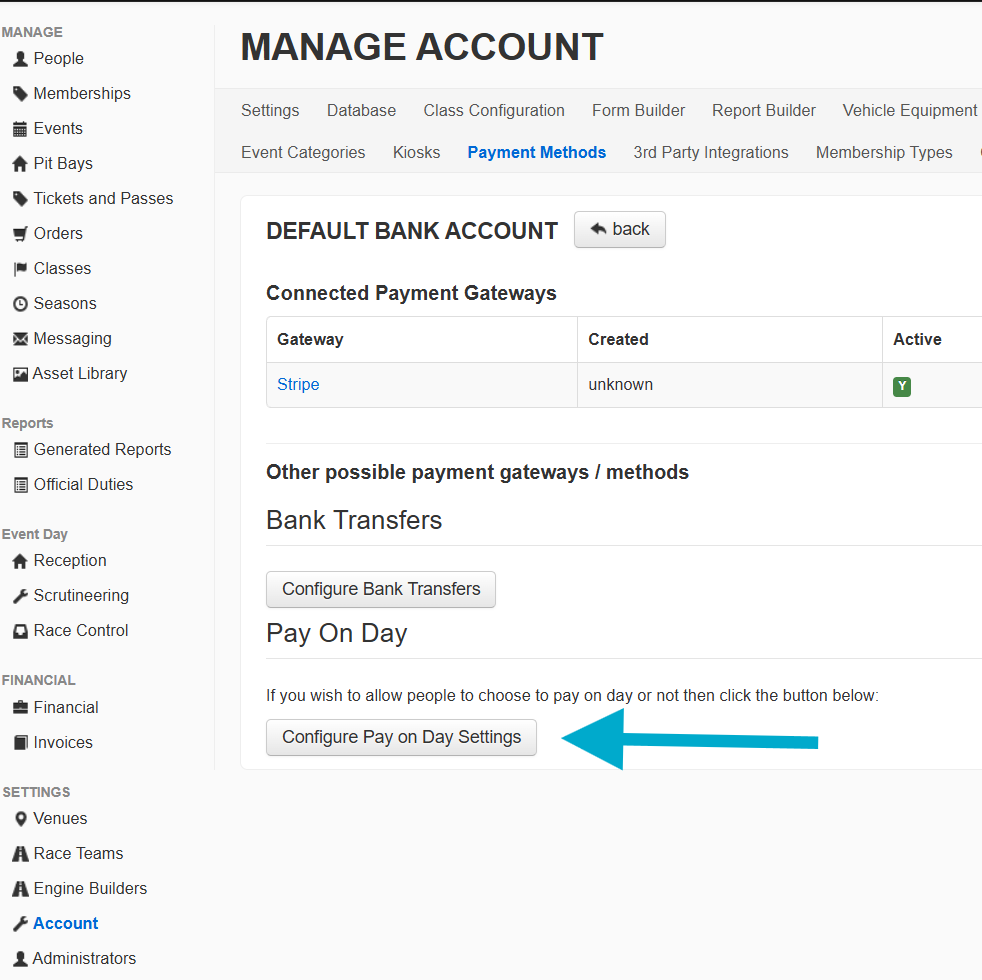
STEP 1: In the Settings menu on the left click Accounts, then head to Payment Methods from the tabs at the top. Click on your default Bank Account.
Then click on the Configure Pay on Day settings:
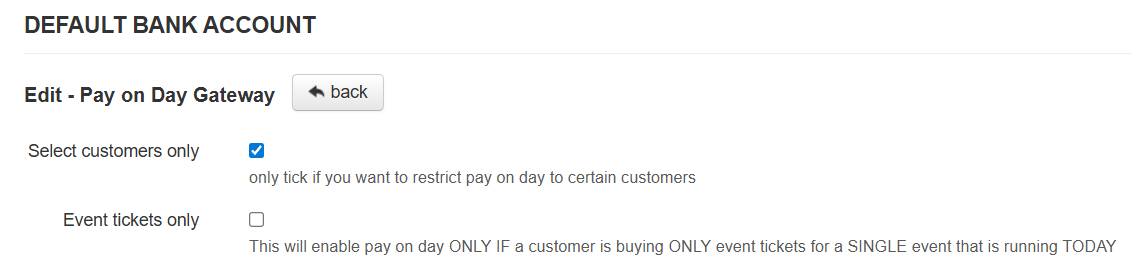
STEP 2: There are two optional settings you can enable for the Pay on Day method to restrict its usage:
- Select customers only
This allows you to select which people are allowed to Pay on the day (see Step 5). Without this setting, the option to pay on the day will be available to all. - On the day Event Tickets
This will enable pay on day only if a customer is buying just event tickets on the day of the event. They cannot have an event entry or other product in their basket, including tickets for another event.
One, both or neither of these options can be selected.
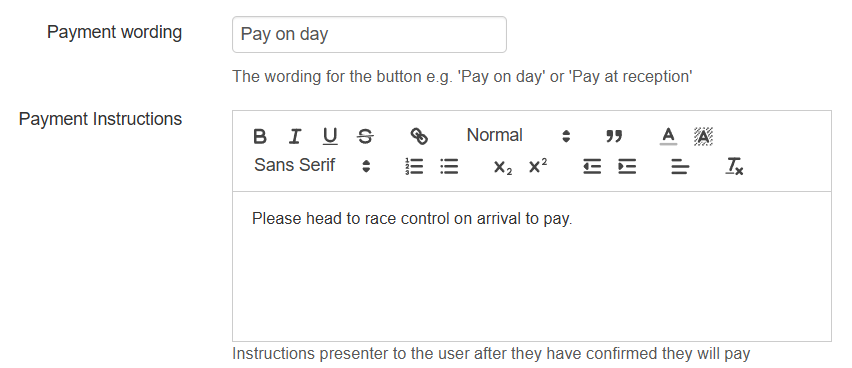
STEP 3: The set the text you'd like to have on the Pay on day button, plus some optional instructions that will be shown after confirmation.
STEP 4: The final step is to enable the method to the public facing pages of the entry system. Tick the Enable on front end tick box, to show to your customers.
To remove the Pay on day capability, untick the Active box, or to temporarily remove it from customers, just untick the Enable on front end tick box.
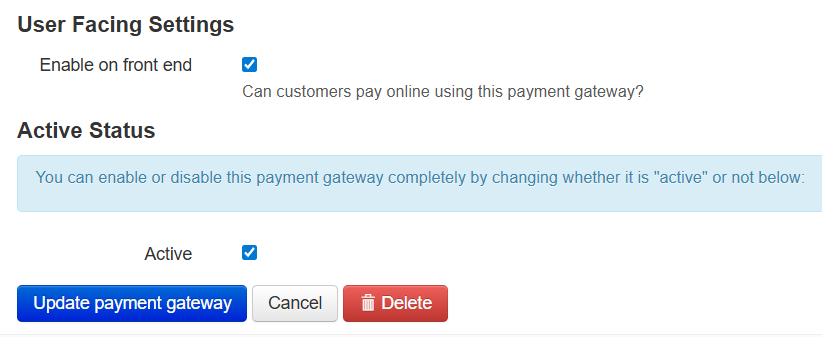
Click Update payment gateway to save your settings.
STEP 5: Optionally you can restrict the ability to pay on day to specific customers. Make sure this option is enabled (see step 2) then in the People section, search for your desired customer.
Click the Edit button next to their name, and set the Can Pay on Day slider to YES.
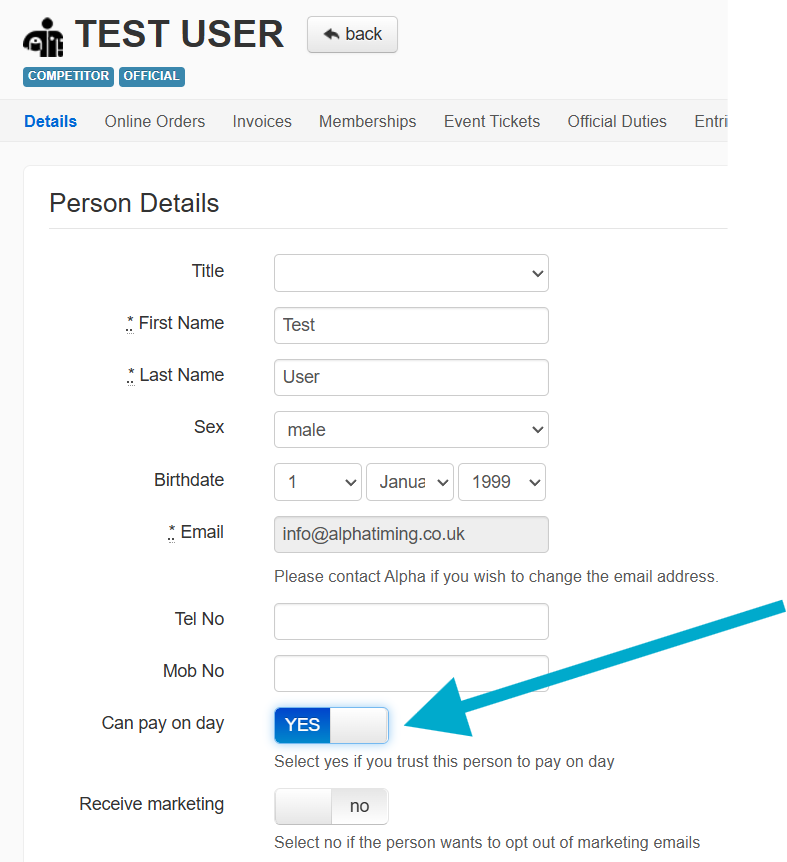
Scroll down to the bottom and click the Update Customer button to save your settings.
Note: Where users have multiple Profiles, the Profile that manages the linked profiles must have Pay on Day enabled.
When Pay on Day has been enabled, if a customer choses to Pay on the day, their entry or ticket purchase will be automatically confirmed, while the invoice remains unpaid, pending their payment.
Was this article helpful?
That’s Great!
Thank you for your feedback
Sorry! We couldn't be helpful
Thank you for your feedback
Feedback sent
We appreciate your effort and will try to fix the article